

Email templates define the subject and body of notification emails sent to registrars and registrants when you use the Notify action on a case. You must have Admin access to manage email templates.
Navigate to Email Templates
Click the Settings icon in the navigation menu.
Select Email Templates.
The Email Templates page lists all templates available to your account. Templates labelled Global are provided by iQ, they are active and ready to use, but cannot be opened or edited.
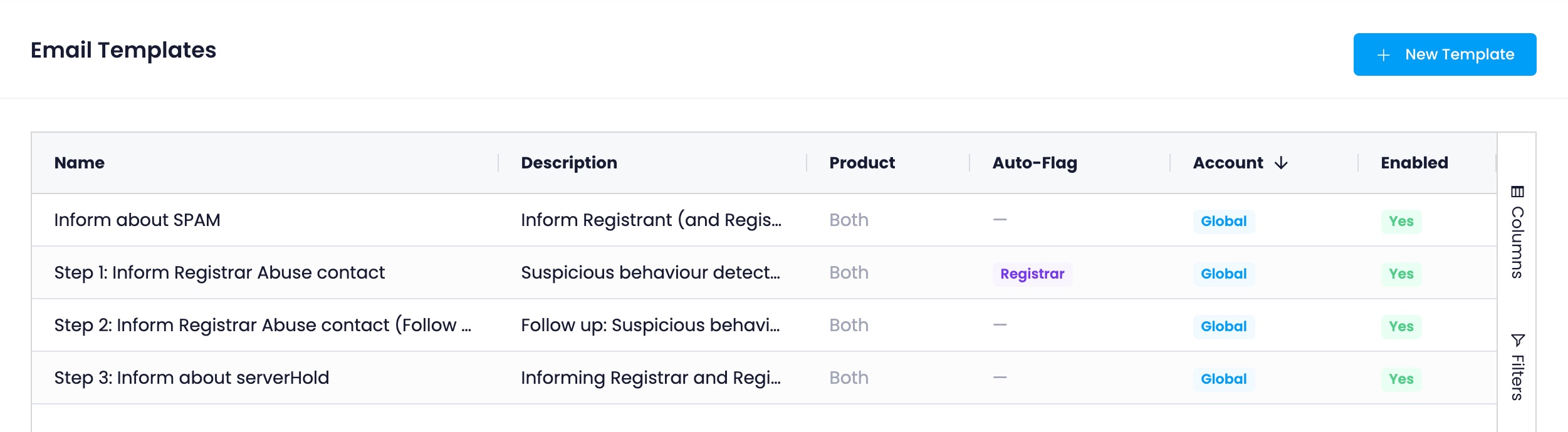
Create a template
Click + New Template at the top right of the page, or scroll below the template list to expand the Add Email Template form.
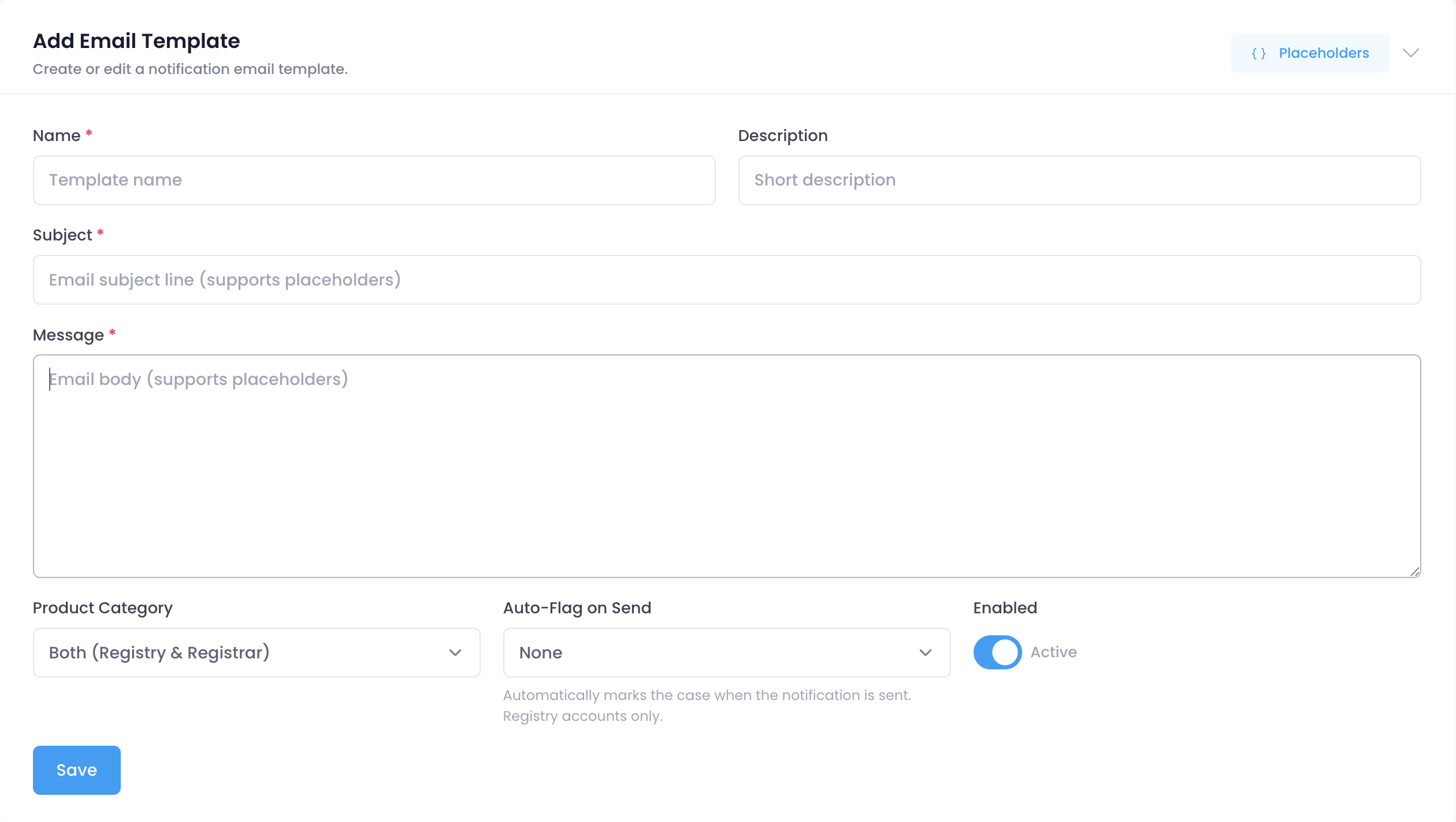
Fill in the fields:
Field | Required | Description |
Name | ✅ | A short label for the template. Shown in the template list and when selecting a template to send. |
Description | — | An optional note to help your team identify the template's purpose. |
Subject | ✅ | The email subject line. Supports placeholders. |
Message | ✅ | The email body. Supports placeholders. |
Product Category | — | Whether this template applies to Registry, Registrar, or Both accounts. |
Auto-Flag on Send | — | Optionally flags the case when this template is sent. Registry accounts only. |
Enabled | — | Toggle active or inactive. Inactive templates cannot be selected when notifying. |
For a full list of values you can insert into the Subject and Message fields, see Available placeholders below.
3. Click Save.
Edit a template
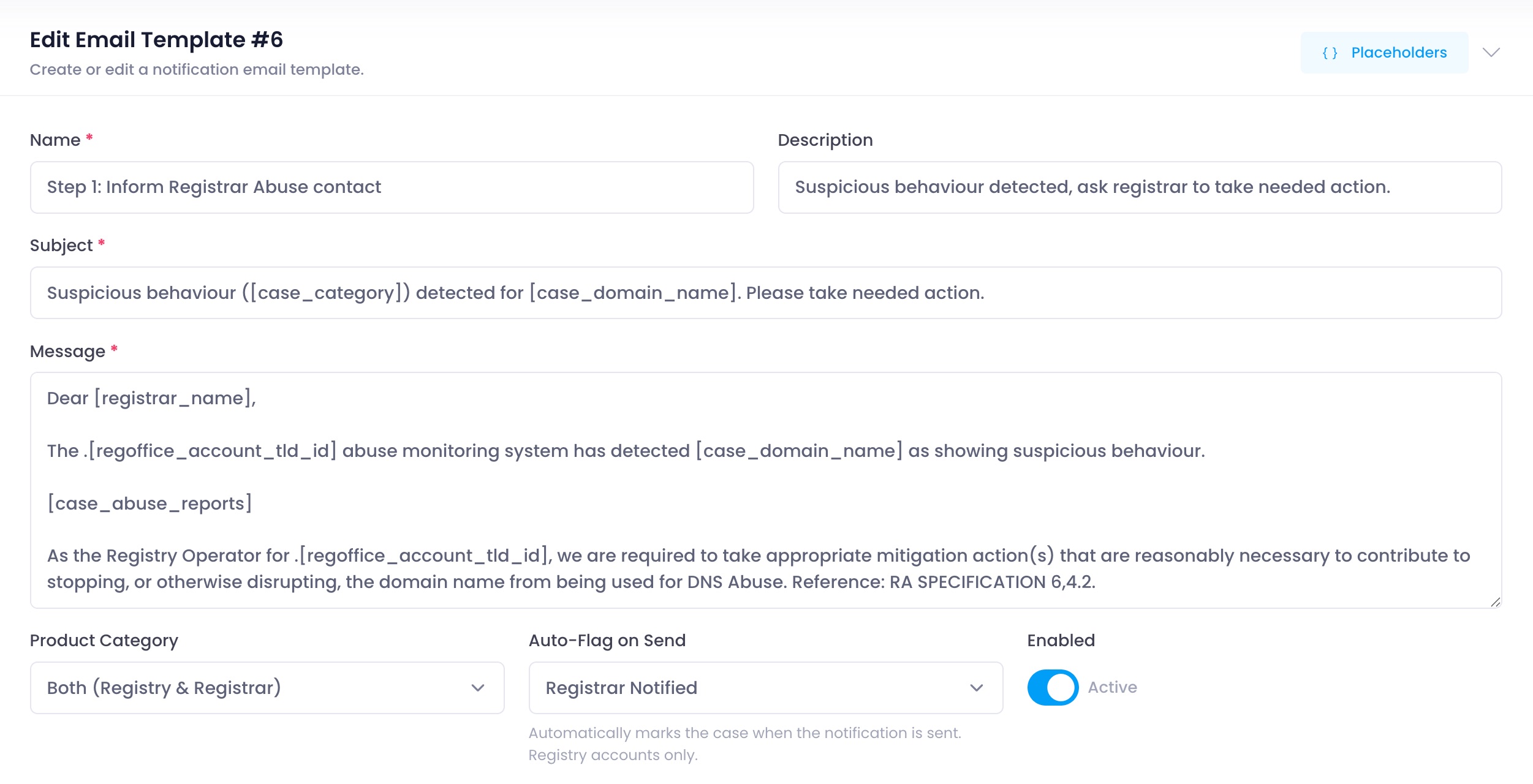
On the Email Templates page, click the template you want to edit. The edit form opens inline below the list, pre-filled with the template's current content.
Update the fields as needed.
Click Update.
To discard your changes, click Cancel.
Delete a template
Warning: Deleting a template is permanent and cannot be undone.
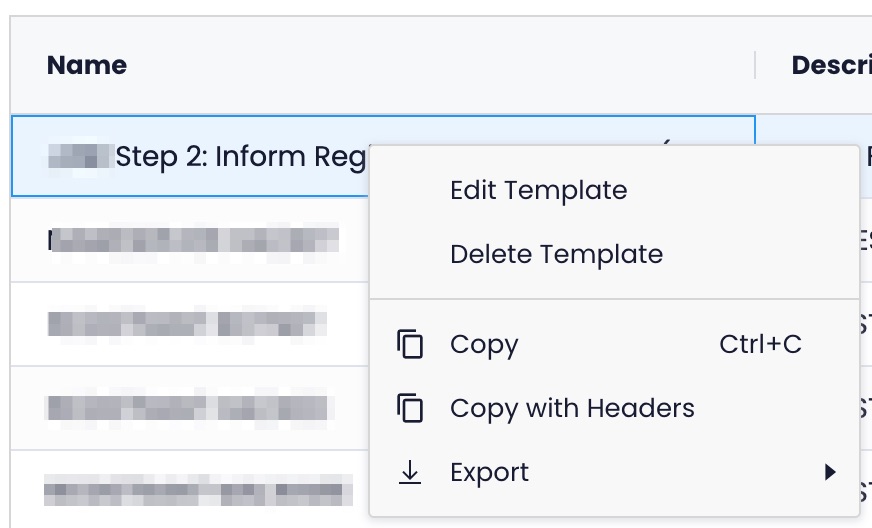
On the Email Templates page, right-click the template you want to delete.
Select Delete Template from the context menu.
Confirm the deletion when prompted.
Available placeholders
Placeholders are replaced with live data from the case and account when the notification is sent. You can use them in the Subject and Message fields of any template.
To view the placeholder list while writing a template, click () Placeholders in the top right of the form.
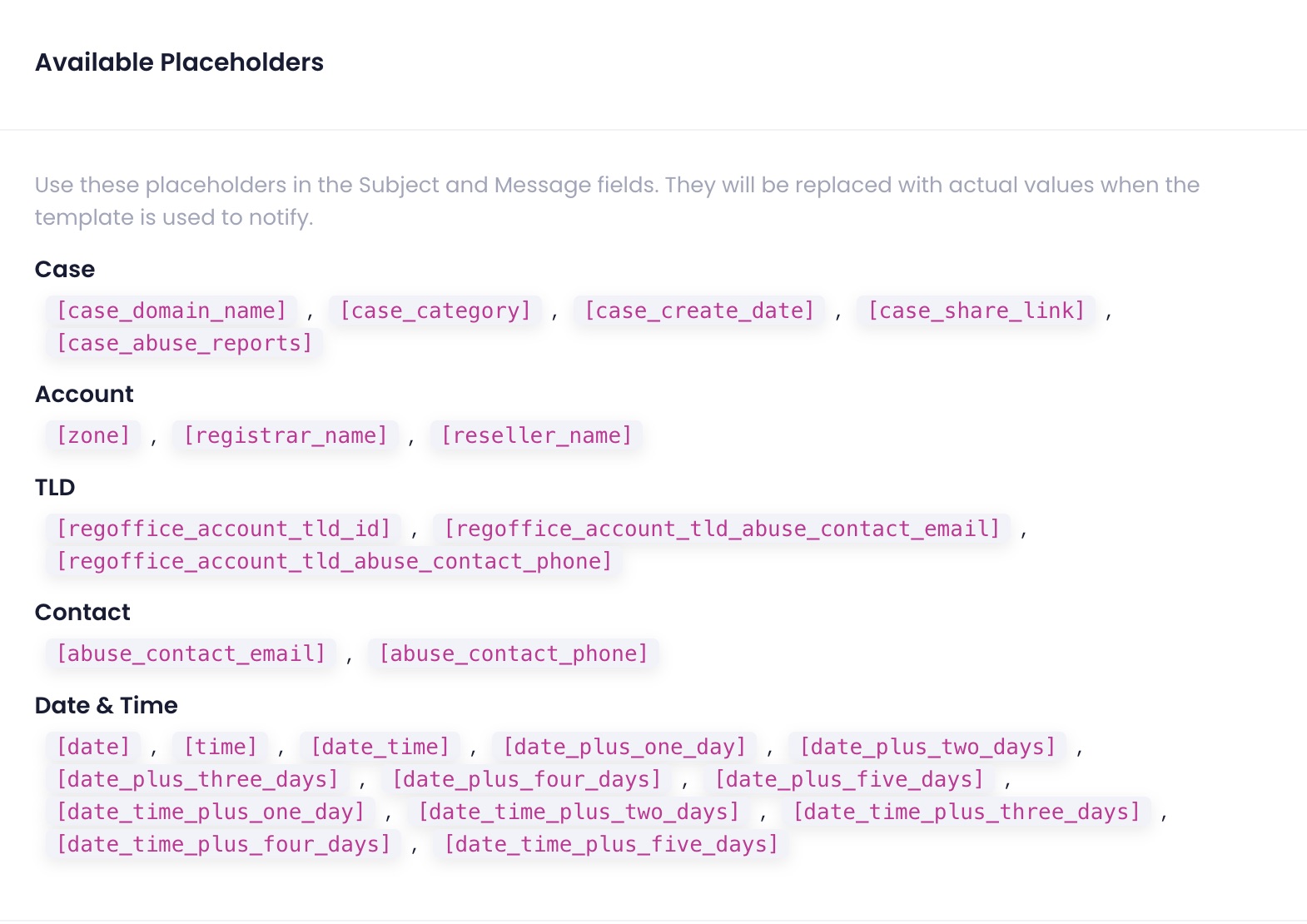
Group | Placeholder | Replaced with |
Case |
| The domain name for the case |
Case |
| The abuse category |
Case |
| The date the case was created |
Case |
| A shareable link to the case |
Case |
| The abuse reports attached to the case |
Account |
| The TLD zone |
Account |
| The registrar name |
Account |
| The reseller name |
TLD |
| The registry office TLD ID |
TLD |
| The TLD's abuse contact email |
TLD |
| The TLD's abuse contact phone |
Contact |
| The domain's abuse contact email |
Contact |
| The domain's abuse contact phone |
Date & Time |
| Today's date |
Date & Time |
| The current time |
Date & Time |
| Today's date and time |
Date & Time |
| Tomorrow's date |
Date & Time |
| Date two days from now |
Date & Time |
| Date three days from now |
Date & Time |
| Date four days from now |
Date & Time |
| Date five days from now |
Date & Time |
| Date and time one day from now |
Date & Time |
| Date and time two days from now |
Date & Time |
| Date and time three days from now |
Date & Time |
| Date and time four days from now |
Date & Time |
| Date and time five days from now |
Related articles
To send a notification using a template, use the Notify action on a case.