

When an inbound email report cannot be classified automatically, it is held in the Inbound Email Queue for manual review. A categorisation modal opens automatically when you log in, or you can review the queue at any time from Settings → Inbound Email.
From the categorisation modal
When you log in and there are emails in the queue, a categorisation modal opens automatically.
Review the email content in the modal.
Assign a category and confirm.
The next email in the queue loads automatically. The modal continues until the queue is empty.
From the Inbound Email Queue page
You can also review and categorise queued emails at any time without waiting to log in.
Note: Admin access is required to access Settings.
Click Settings in the top navigation.
Select Inbound Email.
The Inbound Email Queue page opens. The Pending count in the top right shows how many emails are waiting for review.
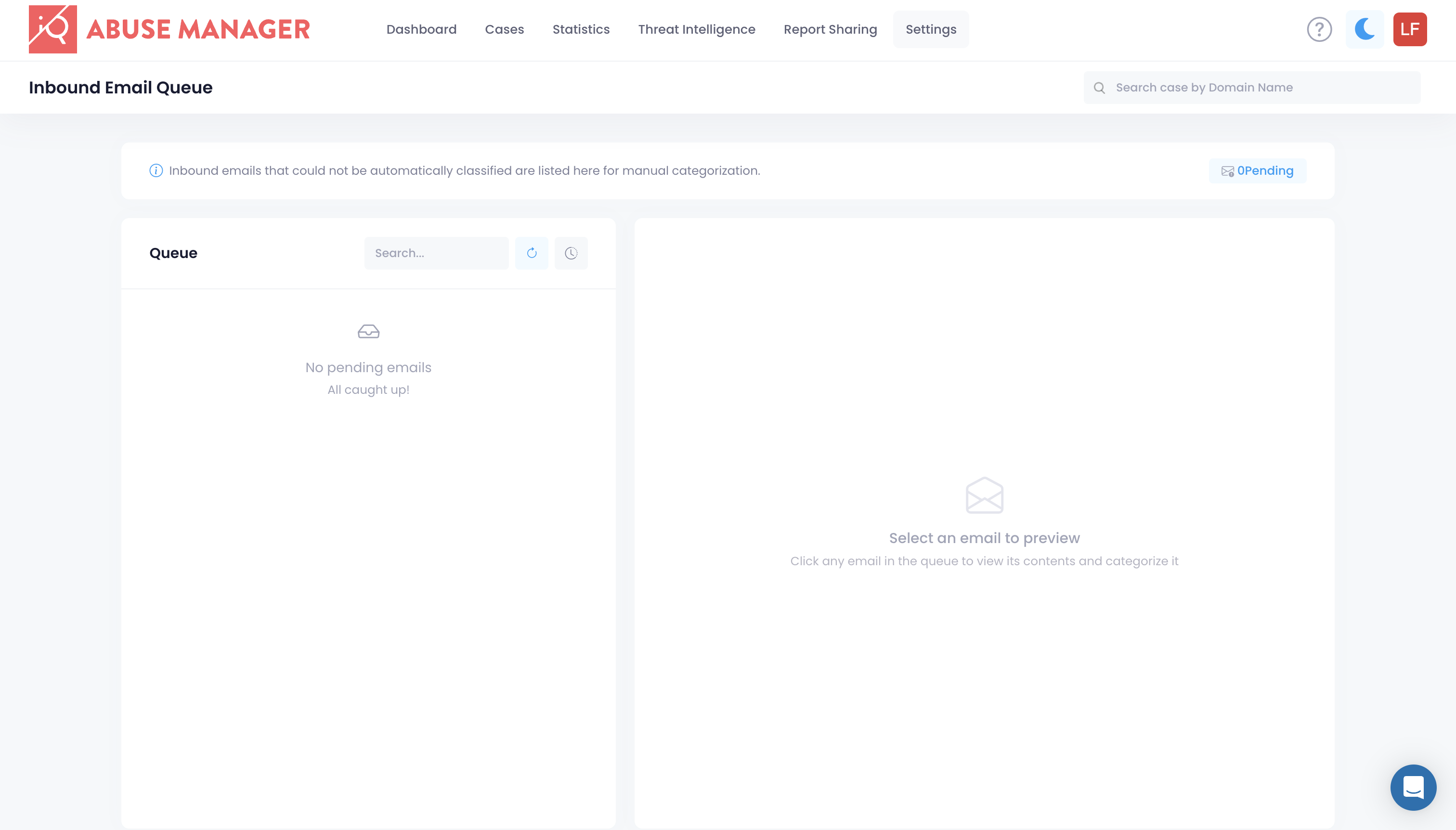
The Queue panel has two icons next to the search bar:

The refresh icon (circular arrow) reloads the queue
The history icon (clock) switches to the Categorization History view
Click an email in the Queue panel to load its contents in the preview pane on the right.
Review the email and assign a category.
When all emails have been categorised, the queue shows No pending emails.
Categorisation History
The Categorization History section shows all previously processed inbound emails, including those categorised automatically by the system.
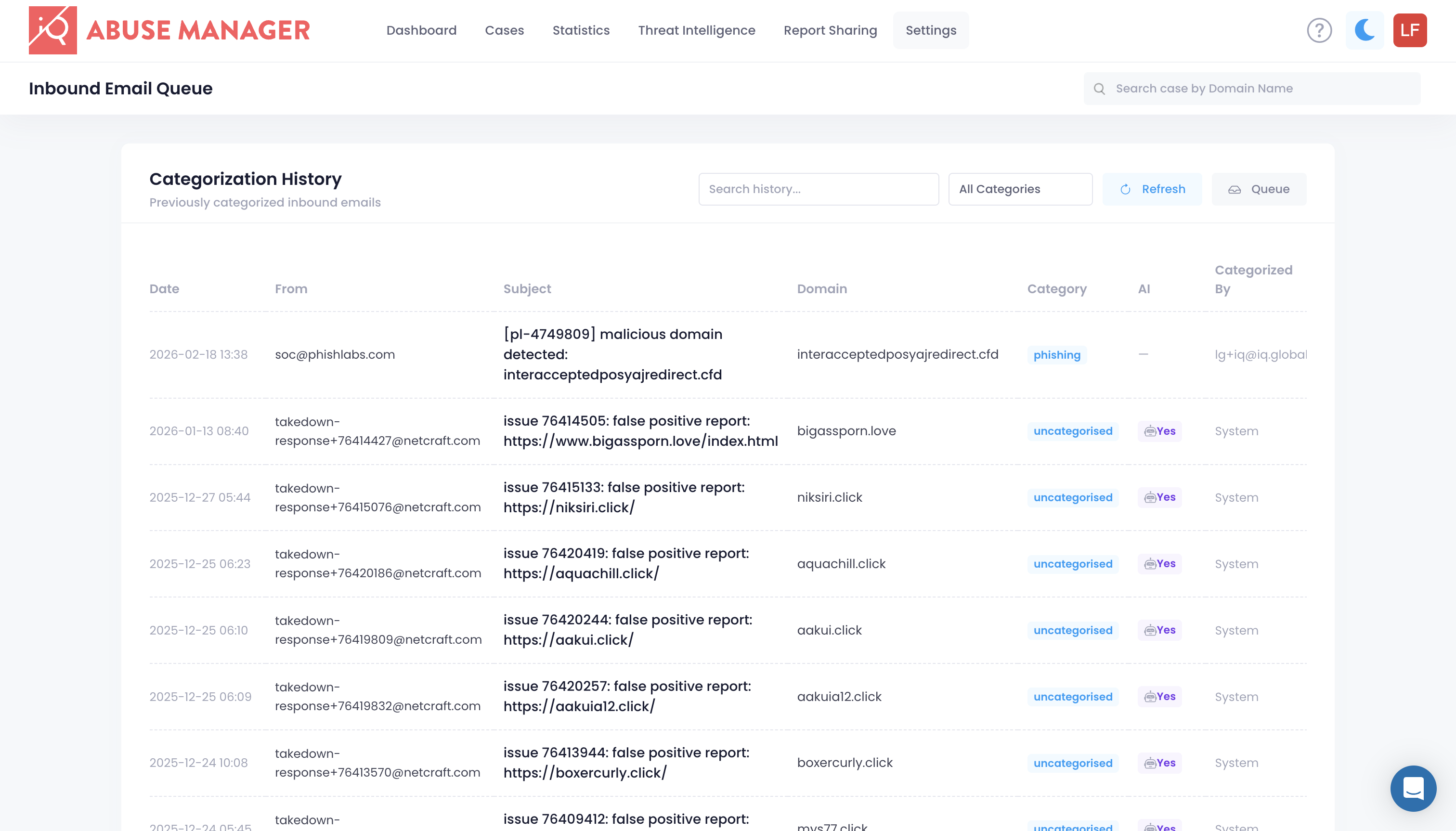
To access the history, click the history icon (clock) in the queue toolbar. To return to the queue, click Queue at the top right.
The history is read-only — you cannot edit or re-categorise entries here.
Each row shows:
Column | Description |
Date | When the email was received |
From | The sender's email address |
Subject | The email subject line |
Domain | The domain extracted from the report |
Category | The abuse category assigned |
AI | Whether the category was assigned automatically |
Categorized By | The user or system that categorised the email |