

Abuse Manager Ruleset is an expansive tool to automate abuse management and potentially integrate with external systems.
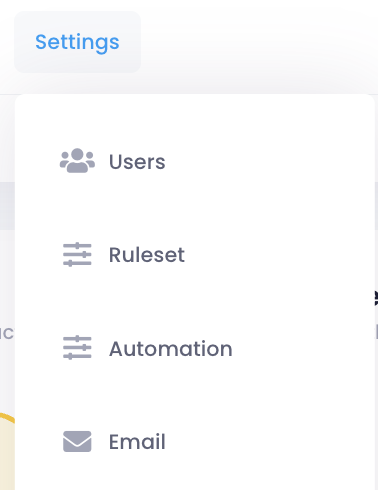
To access Rulesets, click "Settings", "Ruleset"
From this page, you can create a Ruleset manually, or you can use the Ruleset Wizard.
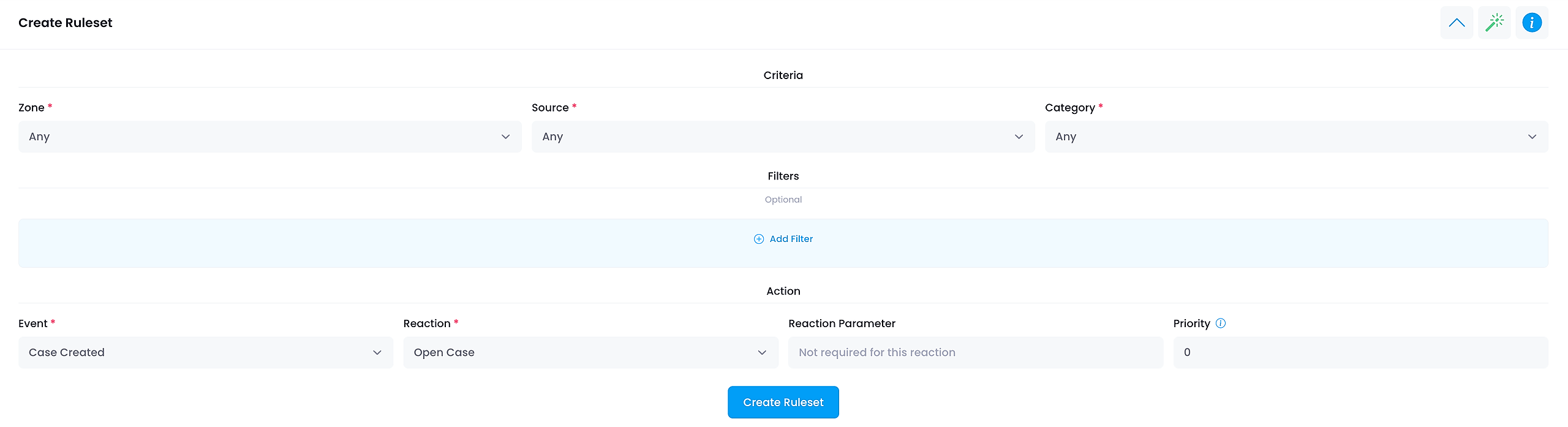
You can create rules based on Zone, Threat Source, Threat Category and a specific event.
This will trigger an action, which we call Reactions
Some reactions also take a parameter, such as an email address to send an email to or a URL to call.
Rulesets act on all cases, whether created automatically, manually or via the inbound email reporting feature.
Event and Reactions Guide
Below is a guide on the events and reactions that are available to you.
Combining these with threat source and category gives you the flexibility to set up automations that mimic your daily anti-abuse workflow
Events
Case Created - Event triggers every time Abuse Manager creates a new case. Does not trigger from manually creating a case.
Case Closed - Event triggers every time Abuse Manager closes a case. Does not trigger from manually closing a case.
Report Created - Event triggers every time Abuse Manager creates a report for a case. Does not trigger when manually adding a report.
Greylisted Case Created - Event triggers if Abuse Manager creates a report for a greylisted case.
Feedback Received - Event triggers if Feedback has been received on a case that has been shared.
Filters
You can create as many filters as you need.
Field - Select from all the fields available in the Cases view.
Operator - Choose from Equal, Contains, Starts with, or Ends with
Value - Enter the value for the Filter.
Reactions
Open case - This reaction will set the case status to open. Suitable for combining with an email or call URL reaction. Does not accept a parameter.
Close case - This reaction will set the case status to closed. Suitable for closing cases from sources or categories that are not actively managed but should still be recorded. Does not accept a parameter.
Send email - This reaction will send a text-based email to the address given as a parameter. Suitable for integration into ticketing systems such as OTRS and JIRA.
Send JSON email - This reaction will send a JSON based email to the address given as a parameter. Suitable for integration into ticketing systems such as OTRS and JIRA.
Send CSV email - This reaction will send a CSV based email to the address given as a parameter. Suitable for integration into ticketing systems such as OTRS and JIRA.
Email abuse contact - This reaction will send a text-based email to the Registrar Abuse Contact if listed in WHOIS. Suitable for notifying the registrar of a domain name about potential abuse. Does not accept a parameter.
Set priority - This reaction will set the priority of a case so that it can be filtered for in the dashboard and thus make it easier to target with a working process. Accepts the following parameters: Highest (or 4), High (or 3), Medium (or 2), Low (or 1), Lowest (or 0).
Increase priority - This reaction will increase the priority of a case by one (1), up to Highest (4). Only available for the case created event.
Decrease priority - This reaction will decrease the priority of a case by one (1), down to Lowest (0). Only available for the case created event.
Set abuse agent - This reaction will set the abuse agent entered (by email matching their Abuse Manager User) in the parameter. Only available for the Case Created Event.
Prioritize multiple reports - This reaction will increase the priority of cases with more than one report. Cases with 2 reports will get an increase by one (1) and cases with 3 or more reports will get an increase by two (2) up to Highest (4).
Take screenshot - This reaction will take a screenshot of the website served on the domain name, if available.
Autoreply to Email - This reaction will automatically reply to the reporter if the initial report came in through email, and let them know that the report has been received (if used for an open event), or that a report has been investigated and resolved (if used for a close event). This event can not be used for "Feedback" events.
Send webhook request - This reaction allows the user to configure HTTP or HTTPS based request to be sent in the event of a ruleset trigger. The reaction offers a lot of customisation and can be used to integrate with ticketing systems, API's, etc.
Priority
This is the Execution Priority (0-999). Higher numbers will execute first. Mulitple rulesets can share the same Priority.
Once you have created a Ruleset, it will appear in the Active Rulesets area. You will also be able to view archived rules by clicking the "Historical" link.
For an interactive walk-through, click Get Started below.