

Yes. iQ Abuse Manager provides two ways to filter or group cases by report source: grouping the Cases table by the Threat Intelligence Feed column, or querying your full case history using the Database Filters panel.
Method 1 - Group the Cases table by Threat Intelligence Feed
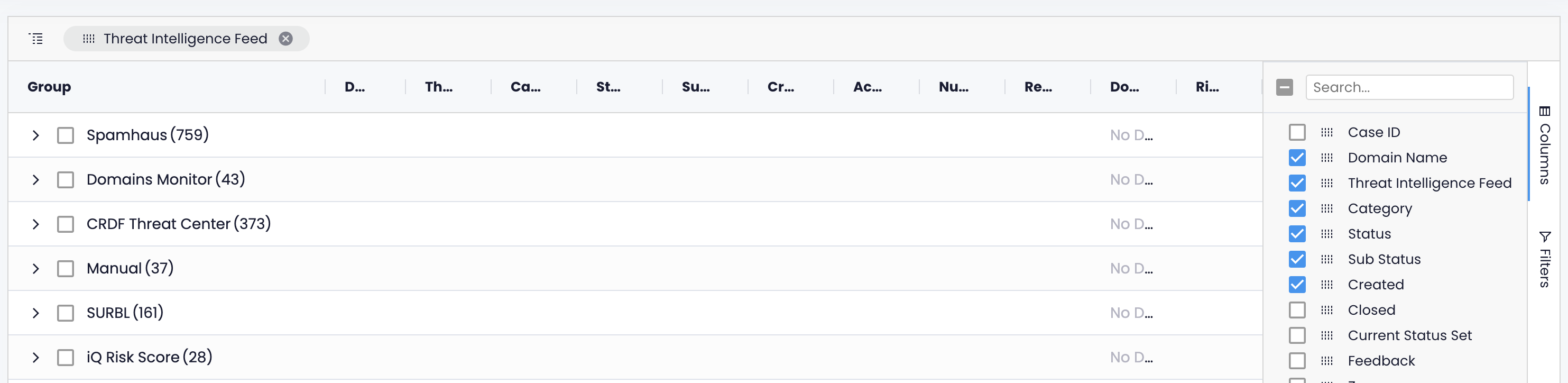
The Threat Intelligence Feed column shows which source submitted each abuse report. This column is not displayed by default, so you need to enable it first.
Go to Cases in the main navigation.
Click Columns on the right side of the grid to open the column picker.
Enable Threat Intelligence Feed to add it to the table.
Drag the Threat Intelligence Feed column header into the grouping area above the table to group all visible cases by source.
Method 2 - Database Filters panel
The Database Filters panel queries your complete case history, including closed and previously actioned cases not visible in the default table view. Use this method when you need to search across all cases, not just the rows currently loaded in the table.
Go to Cases in the main navigation.
Click Filters in the toolbar at the top of the page.

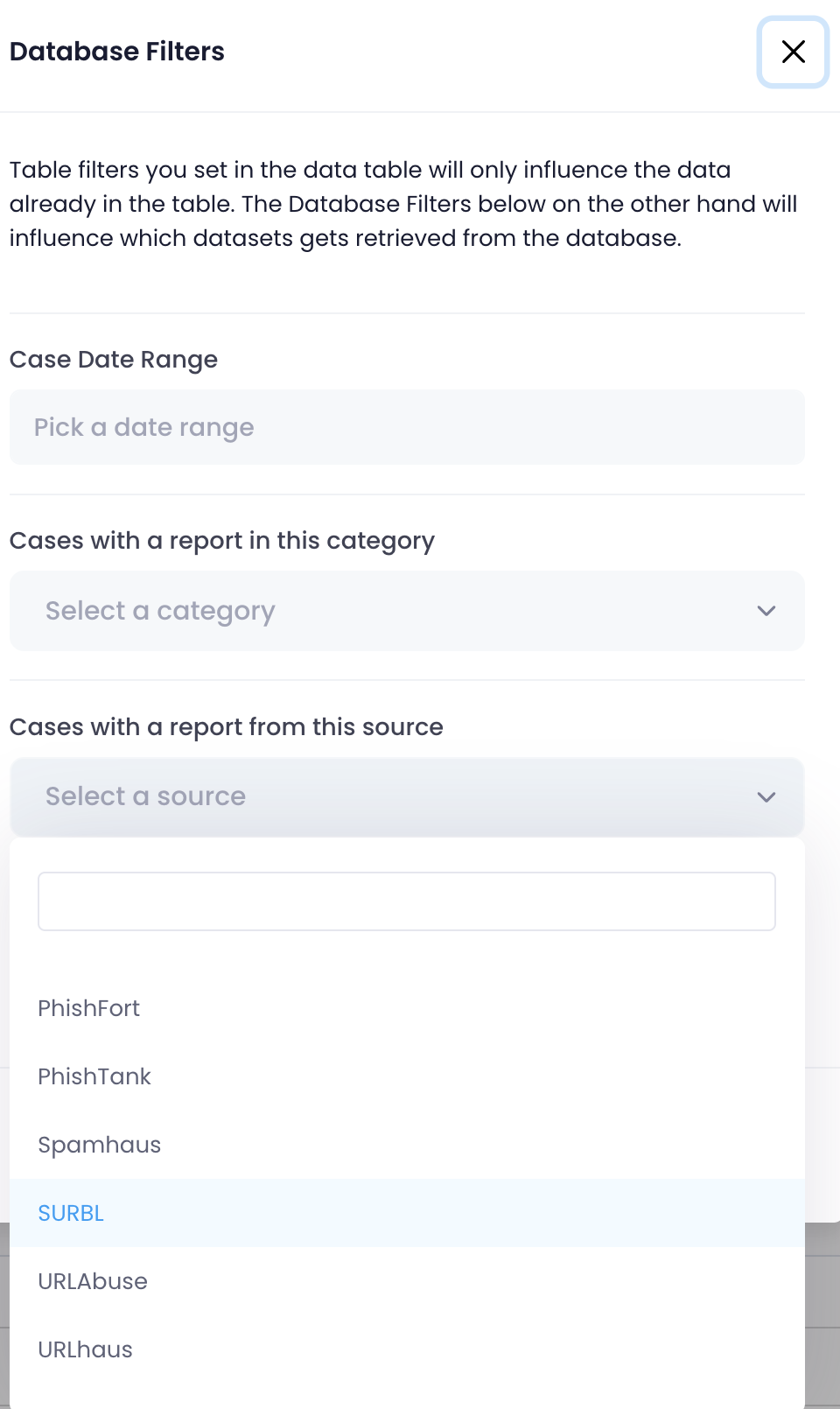
The Database Filters panel opens.
Click the Cases with a report from this source dropdown (labelled "Select a source").
Select a source from the list, or type to search.
Click Apply.
The Cases table reloads and shows only cases that include at least one report from the selected source.
Clearing the source filter
To remove the filter, open the Database Filters panel, clear the source selection, and click Apply again. You can also click Reset in the Cases toolbar to clear all active filters at once.